The App Store search box looks at a handful of text fields you control. Three of them are short on purpose, so every character counts. This guide shows what each field is for, the mistakes that waste space, and a routine to check a draft in a minute. If you only want the checker, open the free character counter.
The three fields and their limits
| Field | Limit | Visible to users? |
|---|---|---|
| App name (title) | 2 to 30 characters | Yes |
| Subtitle | up to 30 characters | Yes |
| Keywords | 100 characters, comma separated | No |
The name and subtitle limits come from Apple's App Store Connect documentation. The 100-character keyword limit is the widely documented figure for the iOS keyword field; confirm it in App Store Connect when you edit the field, because Apple's help pages describe the visible fields and not every limit.
Source: Apple, App information reference.
Each language you add in App Store Connect has its own set of fields, so a Spanish or Portuguese listing needs its own title, subtitle and keywords, written in that language.
What each field is for
- Name: the brand plus, if it fits, the one phrase people type. Users read it, so it has to sound like a product, not a keyword list.
- Subtitle: a short promise with a second important phrase. It is visible under the name in search results, so it also sells.
- Keyword field: the words you want to rank for that do not fit in the two visible fields. Nobody reads it, so there is no need to make it pretty.
Most ASO guides agree that the name, subtitle and keyword field all feed search, and they disagree about which one weighs more. Treat any exact ranking of the three as unproven and test your own changes instead.
Do not repeat words across fields
Apple builds search terms from the combination of your name, subtitle and keywords, so a word that already appears in the name or subtitle does not need to be in the keyword field again. Repeating it spends characters that another word could use. Guides from AppTweak, Gummicube and others give the same advice.
A quick way to see it: write the three fields side by side and underline every word. Any word underlined twice is a candidate to delete from the keyword field.
Keyword field rules that save characters
- Separate with commas and no spaces.
sales,reviews,testflightwastes nothing;sales, reviews, testflightspends a character on every space. - Skip the app name. It is already searchable.
- Prefer one form of a word. Plural and singular variants are commonly reported to be matched together, so listing both is usually a waste. Test it in your own category.
- No filler. Words such as "app", "best" and "free" rarely help, and "free" can mislead users on a paid app.
- Do not use other companies' trademarks. It can get an update rejected.
- Use accents the way people type them in each language. In some markets a search with and without the accent behaves differently, so check the spelling your users actually use.
A routine that takes ten minutes
- List 20 to 30 phrases your users would type, from your own reviews, support emails and competitor listings.
- Put the strongest phrase and your brand in the name, the second phrase in the subtitle.
- Fill the keyword field with the remaining single words, most important first, until you reach 100 characters.
- Run the three fields through the character counter: it counts each field and flags repeated words and spaces after commas.
- Ship the update and write down the date. Keyword changes only show up with a new version, so track ranks for a few weeks before you judge them.
Do not stuff the subtitle with commas and keywords. It is public, and a subtitle that reads like spam hurts the page's conversion even if it helps ranking.
Frequently asked questions
How many characters can the App Store keyword field have?
The iOS keyword field takes 100 characters per language, separated by commas. The app name and the subtitle each take 30.
Should I repeat my title words in the keyword field?
No. The name and subtitle are already searchable, and repeating a word uses characters that could carry another term.
Do spaces after commas count?
Yes, every space counts as a character, so write the list with commas and no spaces.
Do I need to localize the keywords?
Yes. Each localization has its own fields, and keywords should be words people in that country really type, not a translation of the English list.
Watch the ranks after you change them
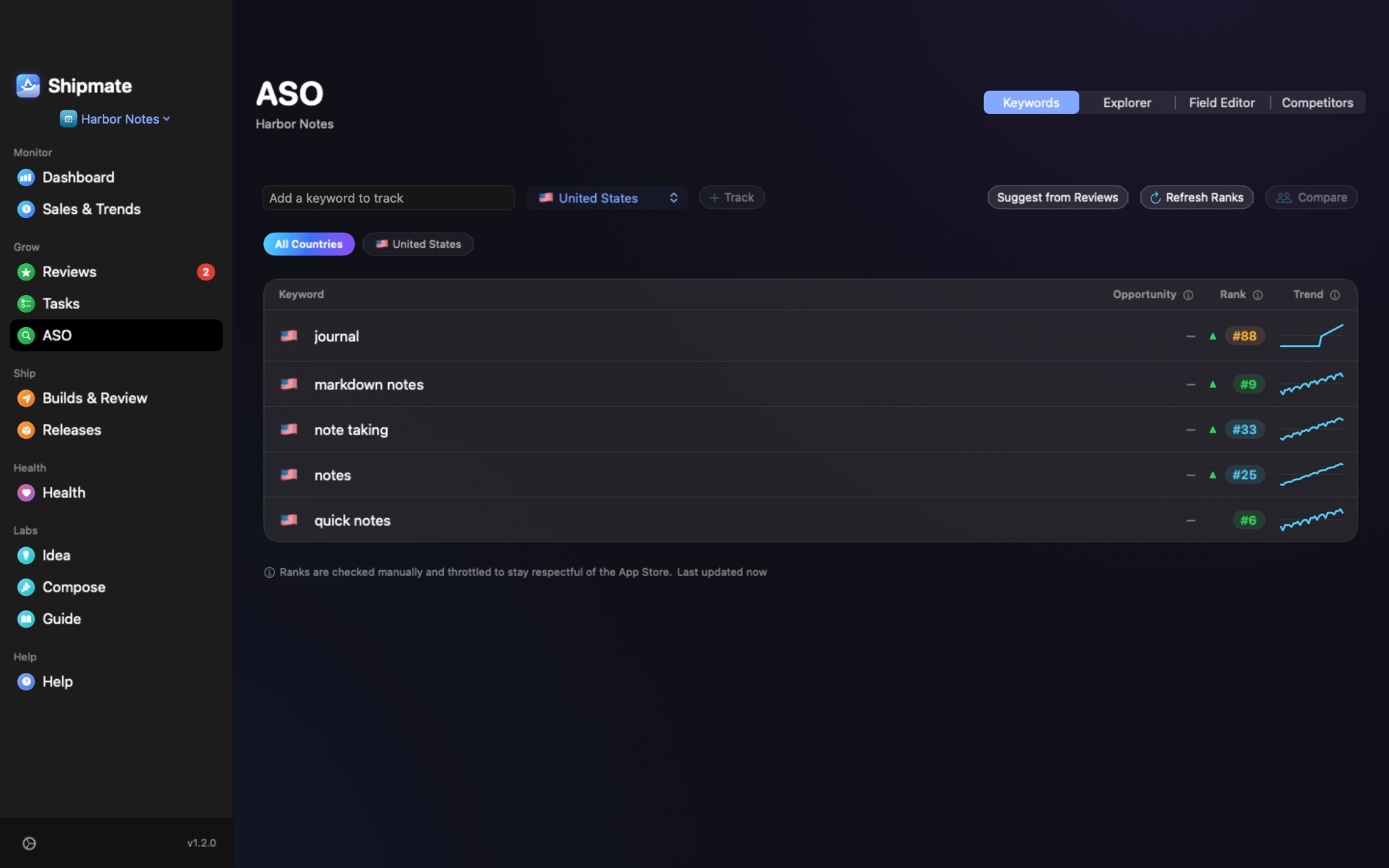
Shipmate tracks your keywords by country, keeps 30 days of ranks and tells you when one drops, so you can see whether last week's keyword change worked. It is a free Mac app, and your App Store Connect key stays in your Keychain.